Writing
Everything you write is a plain text file in a folder on the SD card. The device calls the top-level folders projects and never touches anything outside them.
Projects
Projects from the main menu lists your projects, with Back, + New Project and Manage around them.
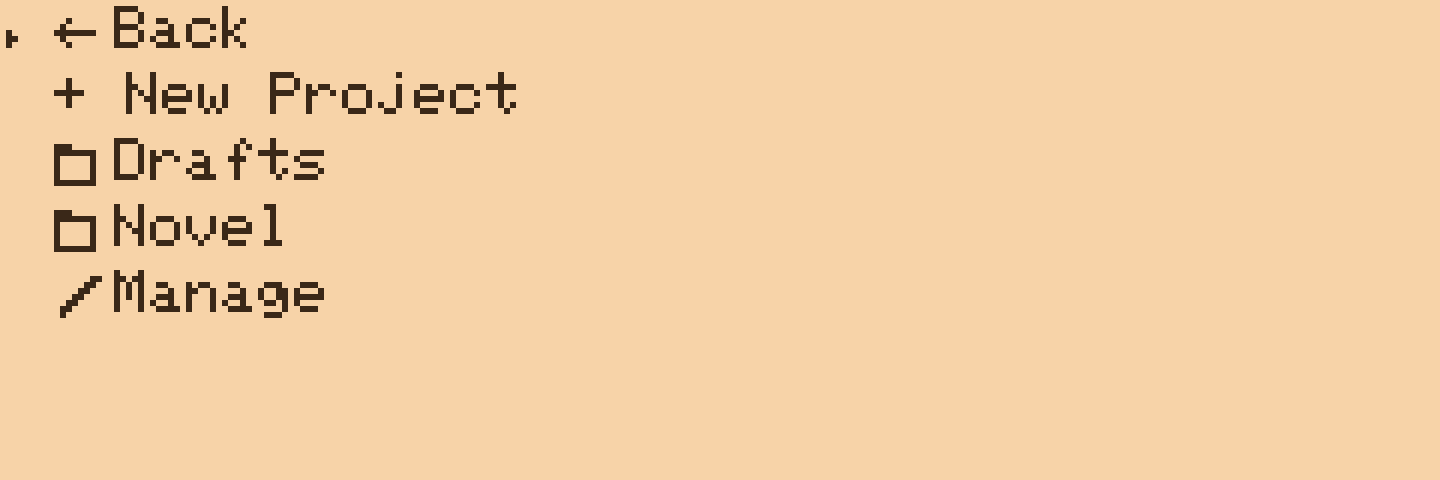
+ New Project asks for a name and makes the folder. Pick a project to go inside it.
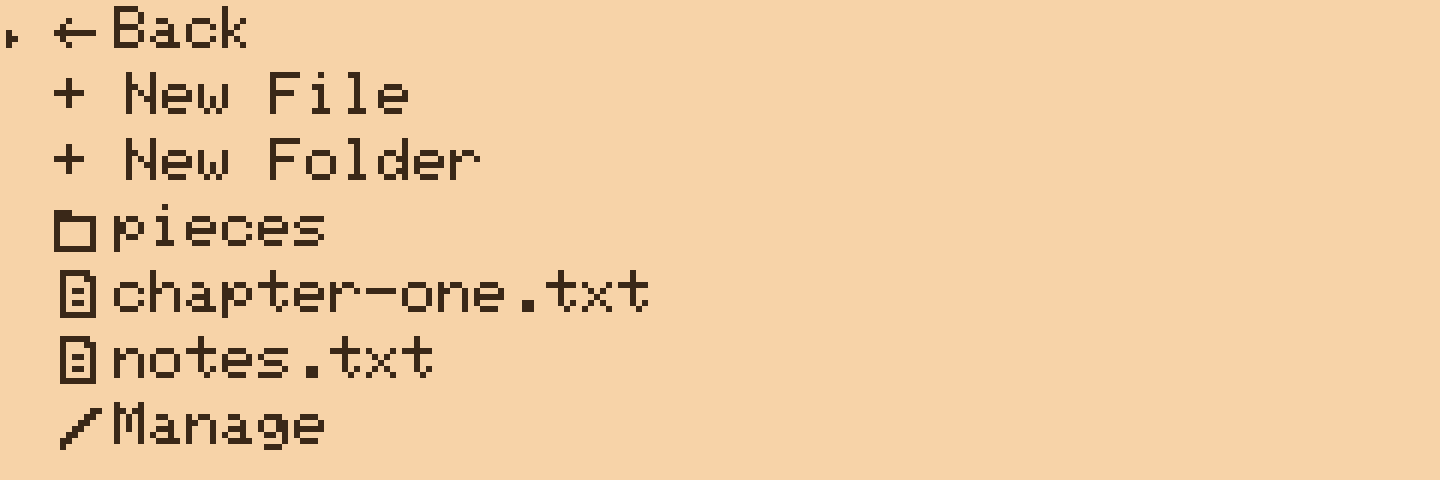
Inside a project the list has Back, + New File, + New Folder, then folders, then files, then Manage. Folders open in place; Back at the top goes up one level, and from the top of Projects back to the main menu. Sub-folders can go as deep as you like.
+ New File asks for a name and adds .txt if you leave the extension off, then drops you straight into the editor with the empty file already saved on the card. + New Folder asks for a name and makes it.
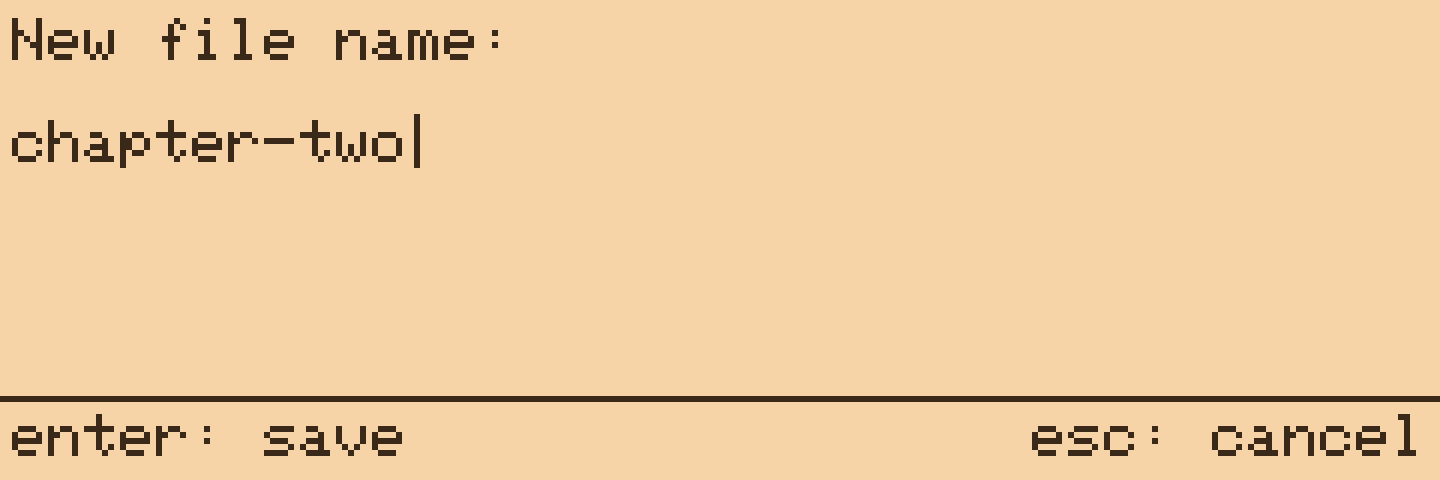
The names Back, New Project and Manage are reserved, because they are rows in the list; the device will tell you if you try to use one.
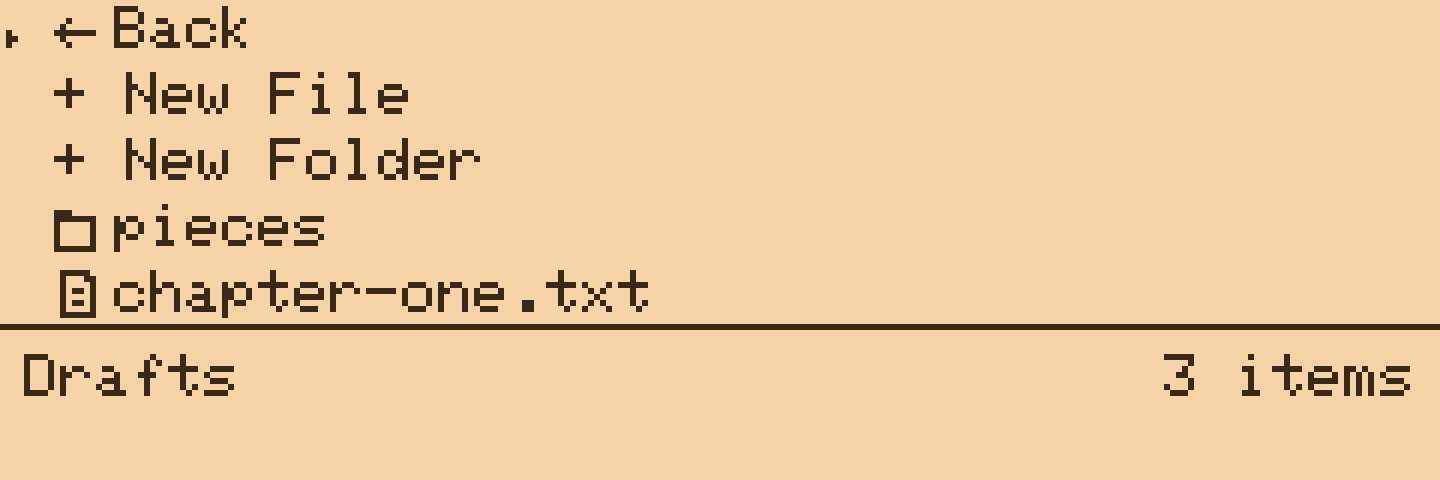
Press POWER on any list to see the status panel: how many items are in the folder, the battery, and free space on the card.
Manage Mode
Manage at the bottom of any list switches it into Manage mode. The row turns into Done with a tick, MANAGE appears in the corner, and picking a file or folder now offers Rename, Delete or Cancel instead of opening it.
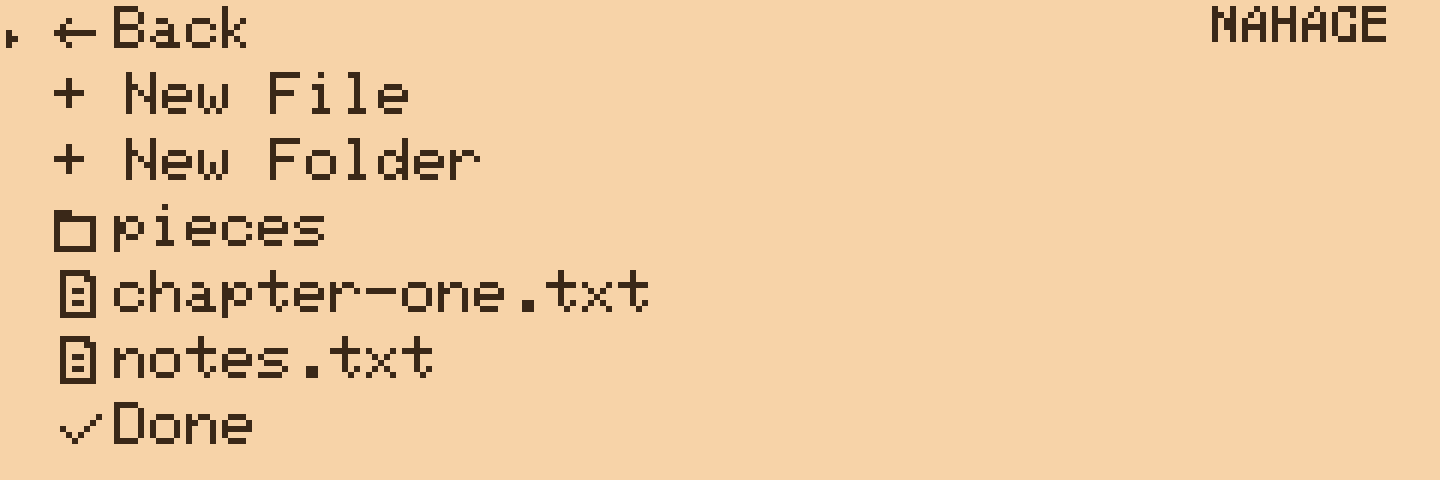
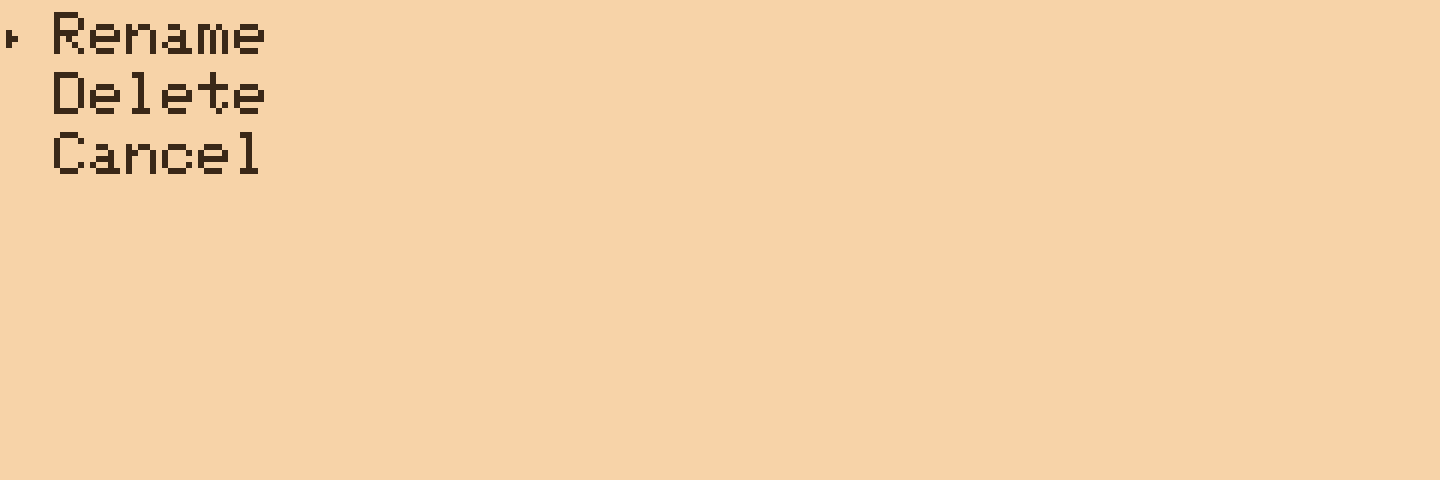
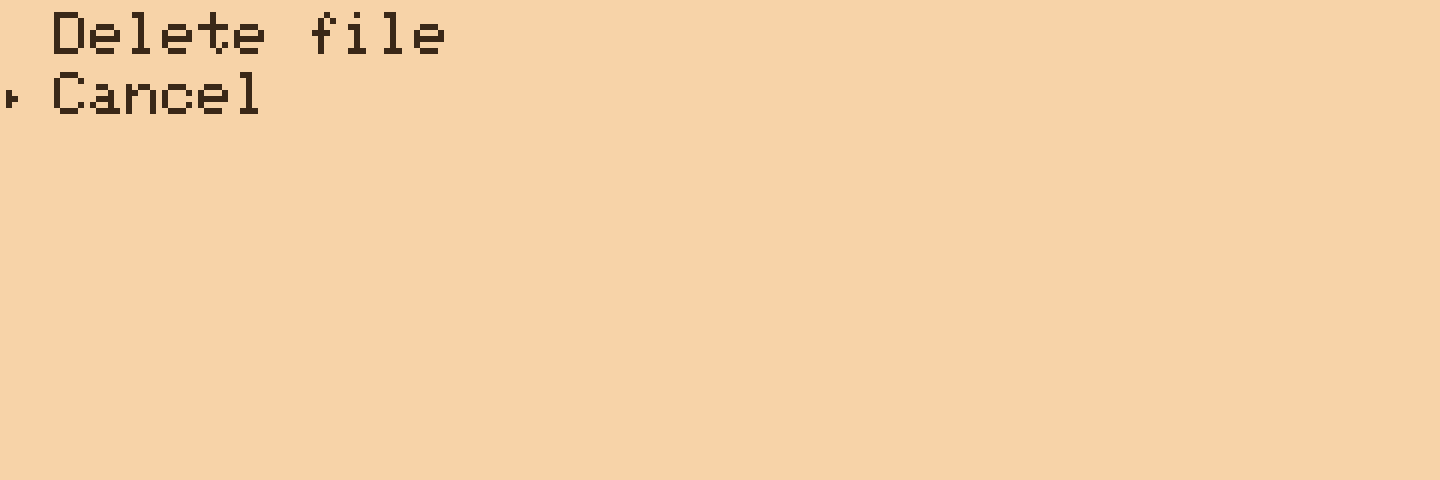
Rename opens the name for editing with the old one filled in. Renaming to a name that already exists is refused. Delete asks once more before it does anything, and for a folder it says so: the folder and everything in it go.
Done, Back or Esc leaves Manage mode. Manage mode only appears when there is something to manage; an empty folder has no Manage row.
The Editor
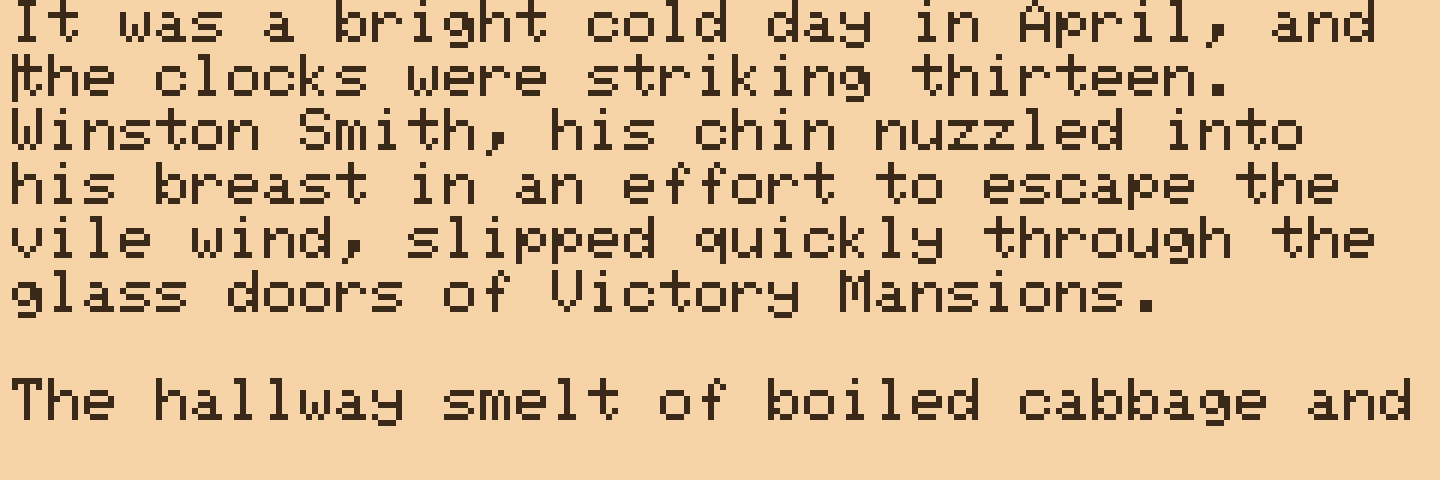
Text wraps at word boundaries to the width of the screen. Long words that do not fit a line are broken at the edge. The cursor is a vertical bar or an underline, depending on the cursor setting, and the view scrolls to keep it on screen.
| Keys | What |
|---|---|
Arrows, Home, End, Page Up, Page Down | move the cursor |
Shift + any of those | extend a selection |
Ctrl + C, Ctrl + X, Ctrl + V | copy, cut, paste within the device |
Backspace, Delete | delete backwards, forwards (or the selection) |
Enter | new line |
Ctrl + S or Esc | save and go back to the folder |
Ctrl + Space or POWER | status panel: project, word count, last sync, battery |
Ctrl + L or LIGHT | cycle the backlight |
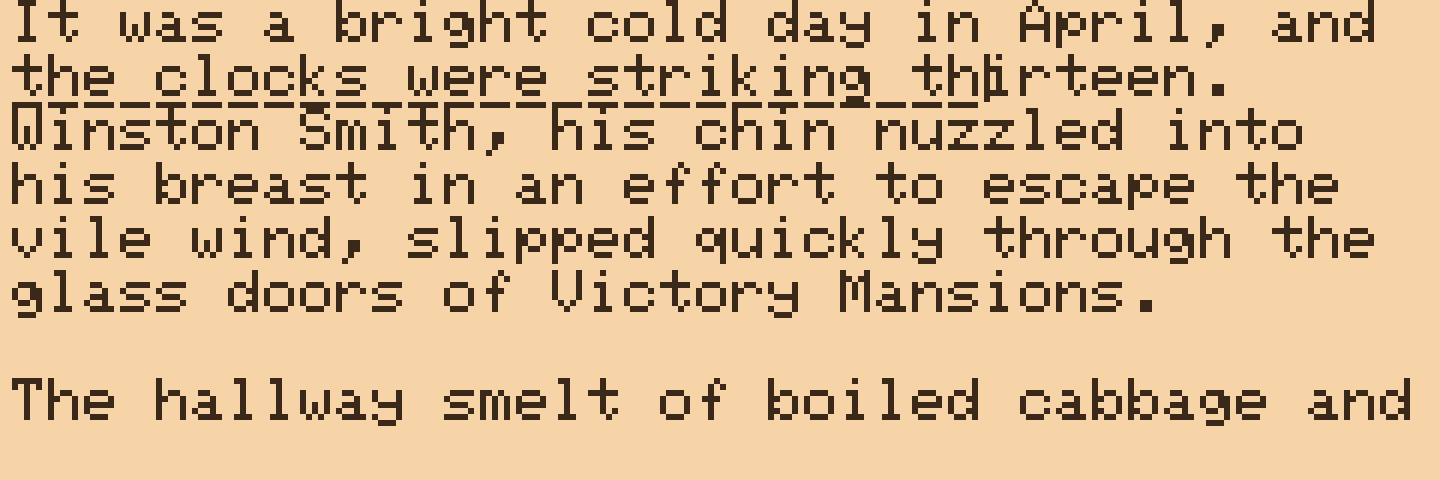
Hold Shift while moving and the selection is underlined. Typing replaces the selection; Backspace and Delete remove it. The clipboard is one buffer that lives until the device powers off, so you can cut from one file and paste into another.
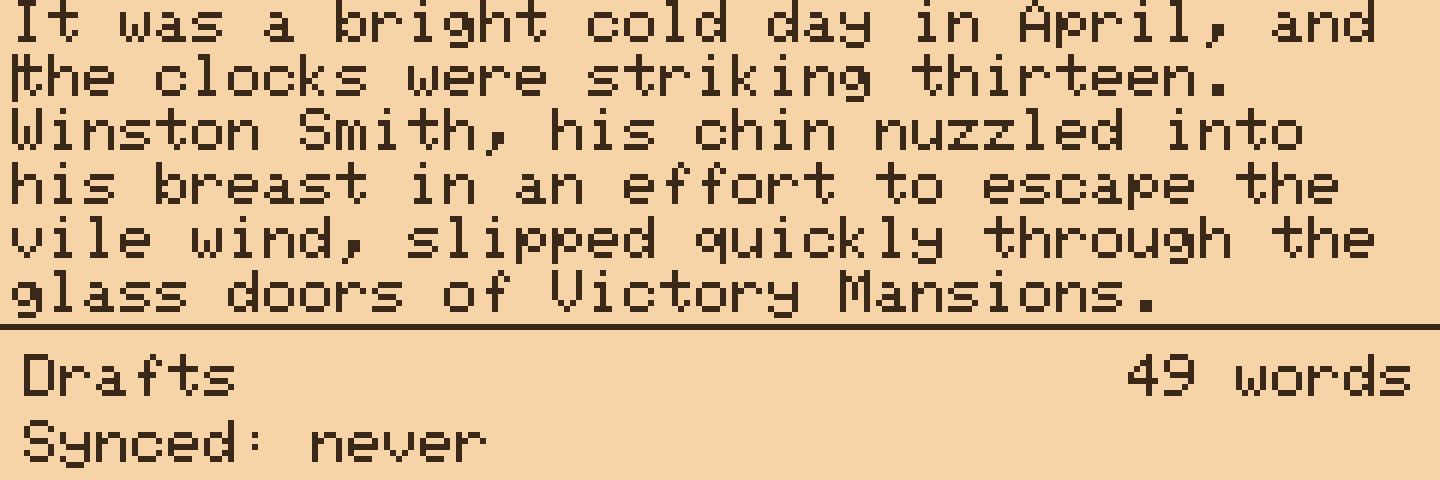
POWER (or Ctrl + Space) shows the status panel over the text: the project, the word count, when it was last synced, and the battery. Press it again to hide it.
Files are written when you leave the editor, with Esc or Ctrl + S; both save and close, and there is no autosave while typing. Holding POWER cuts the power without saving, so leave the editor first. If the save fails (no SD card, say) you get a message and are put back in the editor with your text still there. A file is at most 8 KB of text, which is a few thousand words; split a long piece into files.
Layouts
Letters follow the layout chosen in Settings > Keyboard: QWERTY, QWERTZ, AZERTY or Dvorak. The number row and punctuation stay as on a US keyboard. Ctrl chords are keyed by physical position, so Ctrl + S is the same key on every layout.